Sign with Bitcoin Core
Your phone holds one key. Bitcoin Core on your desktop holds another. Winnow and Core 31.1 can exchange signing requests and complete a payment together.
Your phone plus Core
Use a 2-of-2 MuSig2 account when you want both devices to approve every payment. Neither key can spend alone. On Bitcoin, the payment has one ordinary Taproot signature.
The commands below use signet. Run them on the computer where Core is running. Core holds its own software key in this setup; connecting a hardware wallet is a separate step.
1. Get Core’s public key
bitcoin-cli -signet createwallet "winnow-signer"
bitcoin-cli -signet -rpcwallet=winnow-signer listdescriptors
Find the receive descriptor starting with tr(. Copy the public key expression inside it, keeping the bracketed fingerprint and path but removing the final /0/*. It looks like this:
[9a1f04c2/86h/1h/0h]tpub…This is a public account key, not a private key. Core’s h and Winnow’s ' mean the same thing in the path.
2. Set up the account on your phone
In Advanced mode, open Wallet → Require another signing device. Add your phone’s key and paste Core’s public expression. Check that it says 2 of 2 signing keys required, then save it.
Copy the complete descriptor shown during setup. Ask Core to derive its first receive addresses and check that they match Winnow:
bitcoin-cli -signet deriveaddresses "<public descriptor with checksum>" "[0,2]"3. Add that account to Core
On the desktop, use listdescriptors true to find the private version of Core’s own expression. In a local copy of the shared descriptor, replace only Core’s public expression with its private version. Keep the phone’s expression public. The private version stays on the desktop.
bitcoin-cli -signet -rpcwallet=winnow-signer listdescriptors true
bitcoin-cli -signet getdescriptorinfo "<descriptor containing Core’s private expression>"
bitcoin-cli -signet -rpcwallet=winnow-signer importdescriptors \
  '[{"desc":"<private descriptor>#<new checksum>","timestamp":"now","active":true,"range":[0,1000]}]'
Use the new checksum returned by getdescriptorinfo. Complete the backups below before receiving test bitcoin into the account.
4. Back up before funding
In the account, choose Back up this wallet. Save that file and the phone’s recovery words. Back up Core’s wallet on the desktop as well. Wait for pending payments to confirm before exporting.
On a replacement phone, the default file restores watch-only access. To restore signing through the current import screen, use an export made with Include recovery phrase. That file contains the phone’s signing secret; keep it private. There is no separate recovery-word field during import.
The phone’s file includes the account and its tracked funds. Restoring an older file checks for later payments, and removes spends observed in the scanned window. The file’s earlier history remains a trusted starting claim. The file does not contain Core’s private key or a live signing exchange. Losing either required key and all its backups leaves this account unable to spend.
5. Approve a payment on both sides
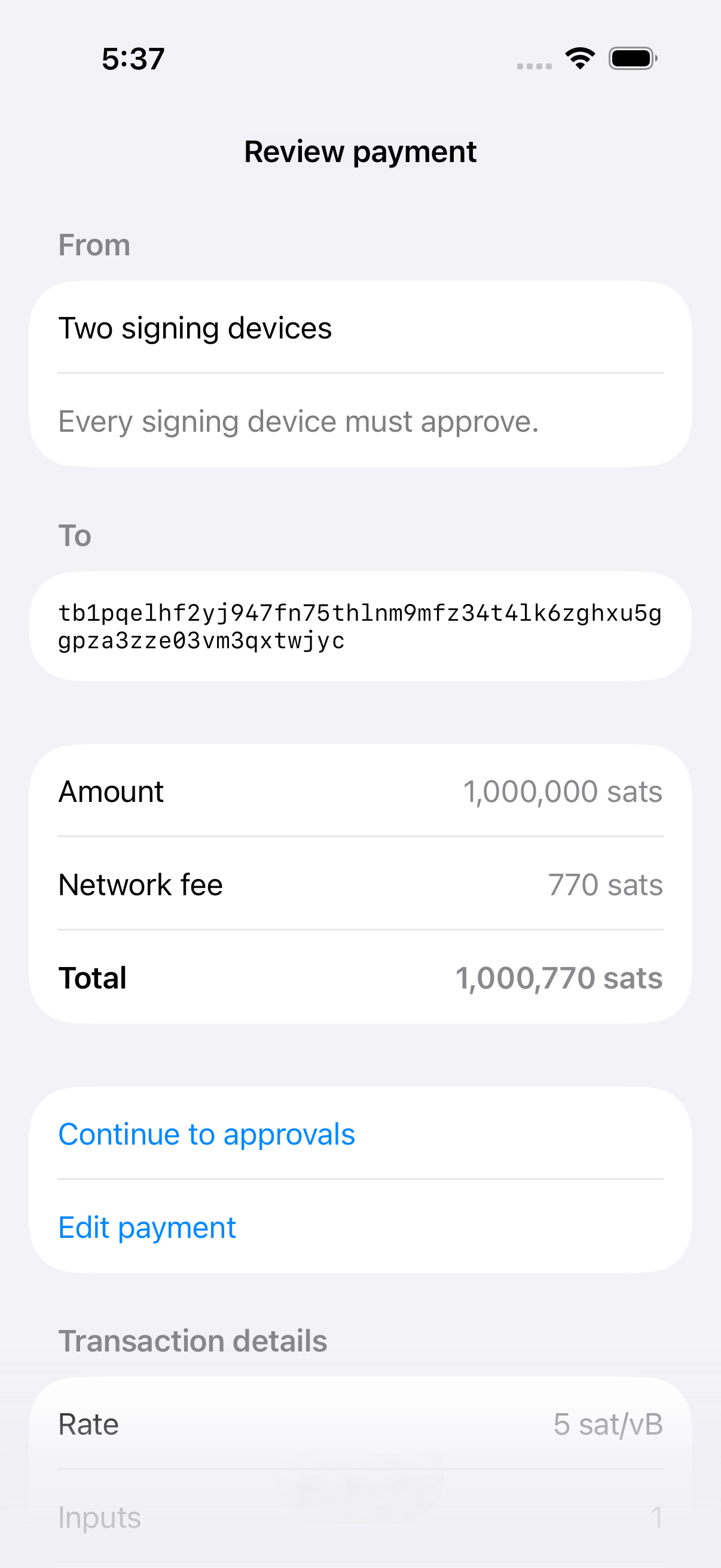
- In Winnow, open the account and tap Send, or choose the account from the Send tab. Enter the recipient and amount.
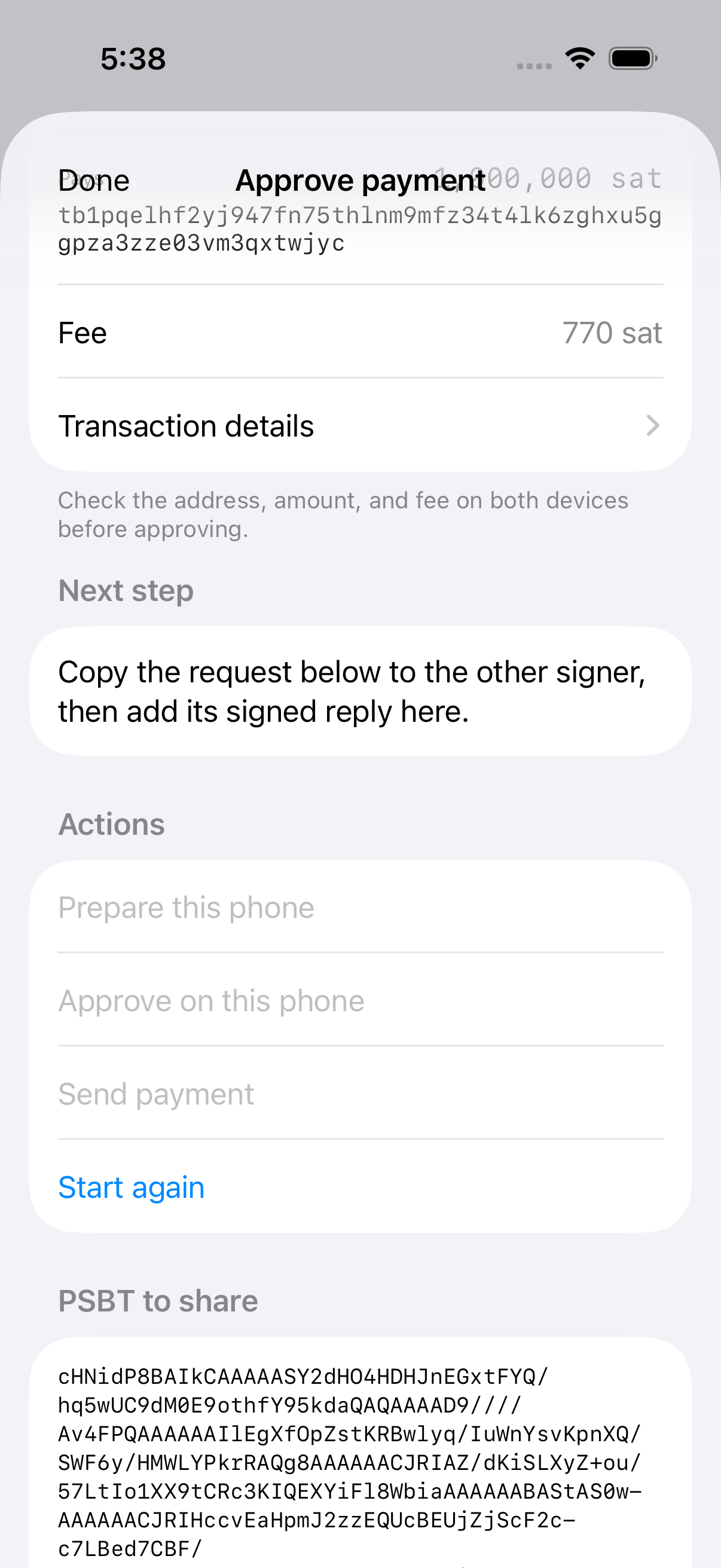
- Tap Review payment and check the account, address, amount, and fee. Choose Continue to approvals, then tap Prepare this phone.
- Copy the request shown below the buttons to Core. Read its payment details, then process it:
bitcoin-cli -signet decodepsbt "<request>"
bitcoin-cli -signet -rpcwallet=winnow-signer \
walletprocesspsbt "<request>" true "DEFAULT" true false- Paste Core’s returned
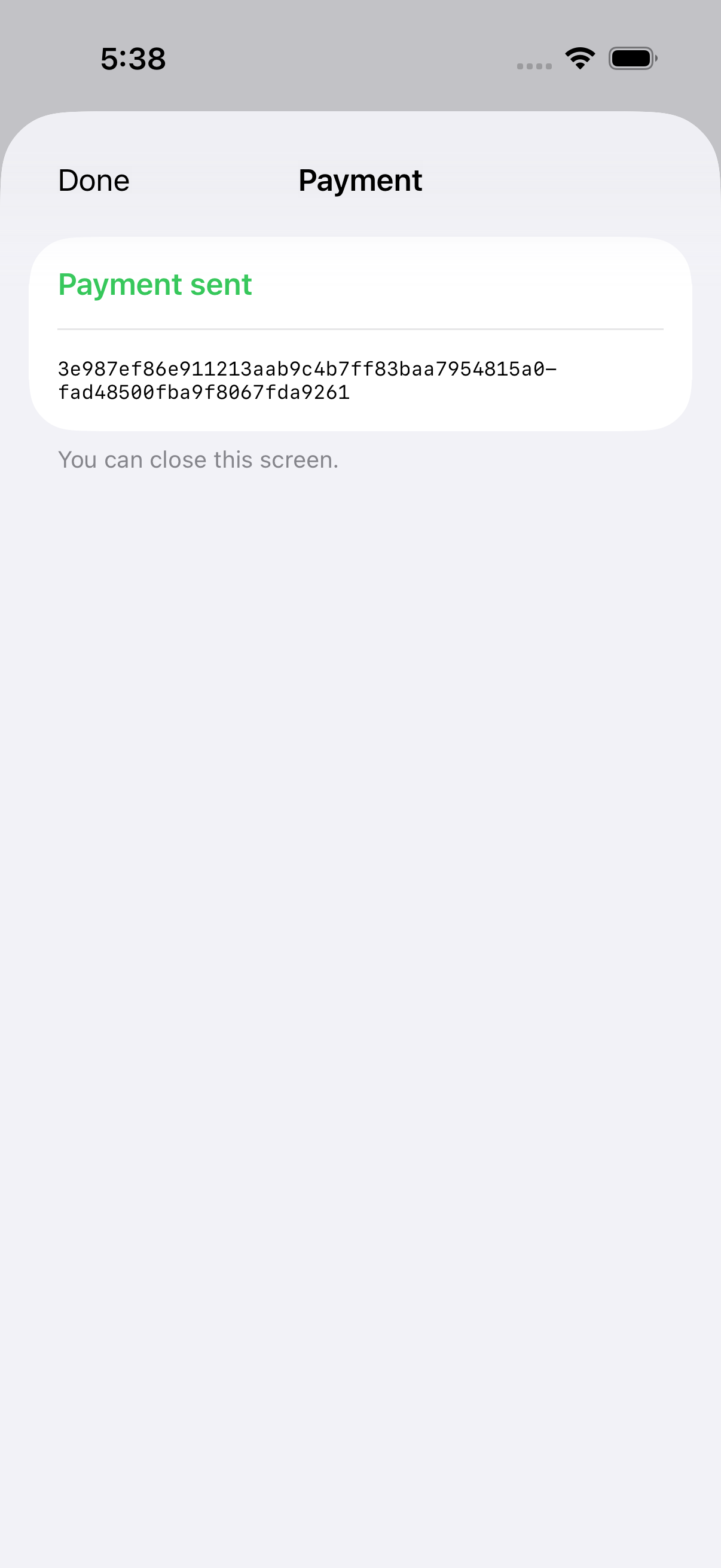
psbtinto Winnow and tap Add reply. Check the payment and tap Approve on this phone. - Pass that new request through Core’s same command. Add its reply in Winnow, then tap Send payment.
The final false asks Core to leave the signing data available for Winnow to combine. The app handles the file format conversion. Keep its signing screen open during the exchange.
If you leave the screen or lock the phone, tap Start again and exchange the fresh request with Core. Do not reuse an old reply.
A shared 2-of-3 account
For shared decisions, create a three-key account and require two approvals. One or two of those keys can belong to Core wallets. Get each public expression as above; for this setup, keep the /<0;1>/* suffix on each participant.
The account uses tr(NUMS, sortedmulti_a(2, …)). Import it into each Core signer with only that signer’s private expression. Each signer runs walletprocesspsbt; combine the replies in Winnow. It needs two signatures, with no MuSig2 preparation round for ordinary individual keys.
Any two keys can move the money. A payment reveals the three public keys and the two-required rule, but not people’s names or device types.
Two Core signers
The integration journey imports the 2-of-3 descriptor into two Core wallets. The phone and one Core wallet approve the payment; the other Core key stays available but unused. It exercises this one combination, not every possible pair or signing order.
Use a group as one signer
A phone-and-second-key MuSig2 group can fill one slot in a larger shared account. Both group members must participate to fill that slot. The other two outer signers can still spend together without the group. See descriptor details.
Watch the recorded payments · Current test runs and artifacts · Signing accounts explained · Hardware wallets and future partners
Recorded evidence
The one integration journey makes an ordinary payment, receives and sends with one Core MuSig2 cosigner, then receives and sends from a script-path 2-of-3 account with two Core cosigners available. The private signet fixture mines blocks automatically. Focused app tests check account backup rules.